
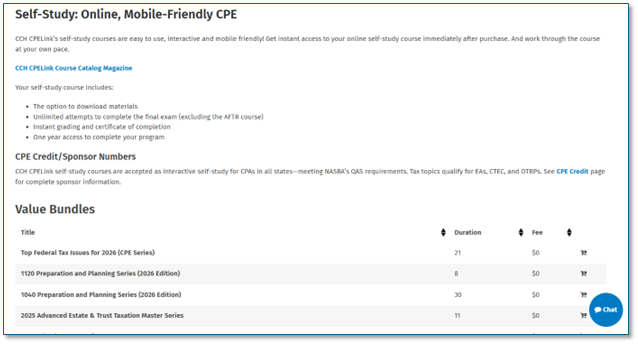
Click on the "Self-Study" tab or use the Search to find a self-study/on demand course.
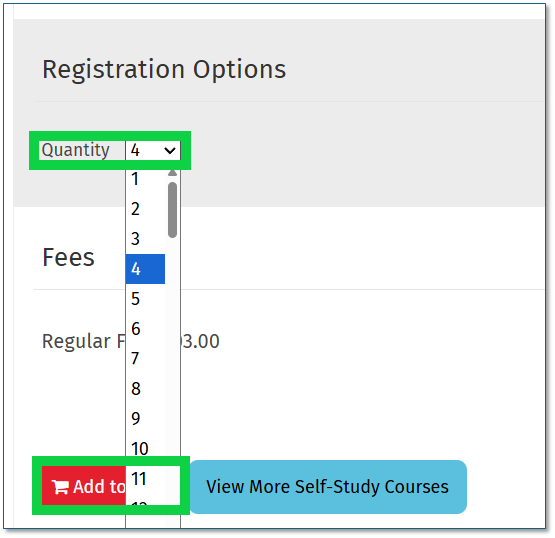
Click on the name of the course you'd like to register your staff in and Update the Quantity in the "Registration Options," select the number of staff and click the red "Add to Cart" button towards the bottom of the page:
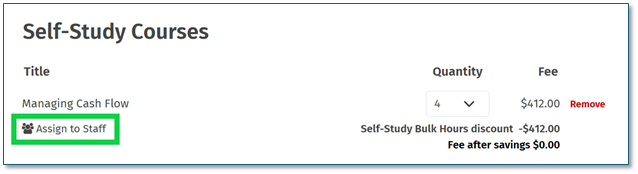
Click on the "Assign to Staff" link:
In the "Assign to Staff" box, click on the circles to the right of the staff members' names and click on "Submit":
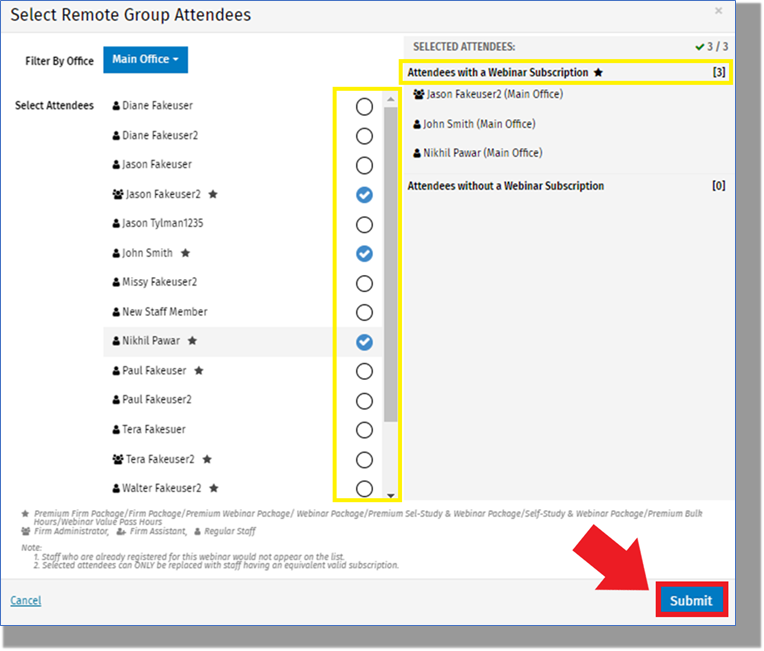
Those staff members with an active subscription will be indicated by a star. Any without a subscription will show up with a cost when checking out.
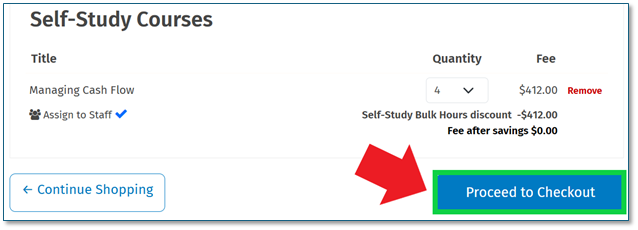
Click on the red "Proceed to Checkout" button to continue registering staff:
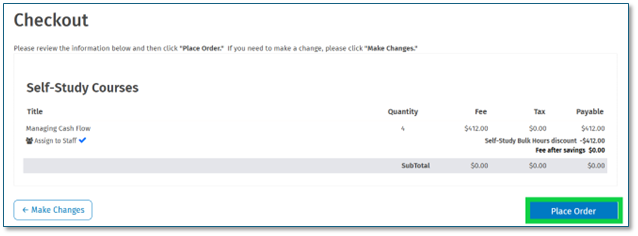
Review the selected choices, make any changes necessary and click on the "Place Order" button:
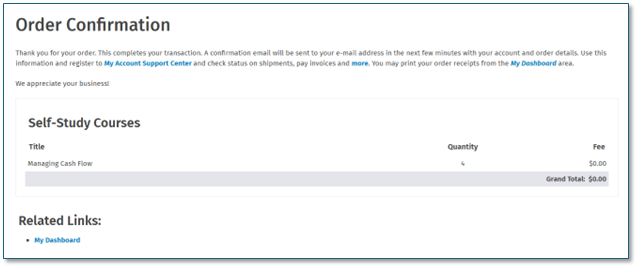
Once upon the "Order Confirmation" page, the courses have been assigned to Staff. Each attendee should also receive a confirmation email that they have been registered for the course and it will be available in their "My Dashboard" area as well upon logging in.