
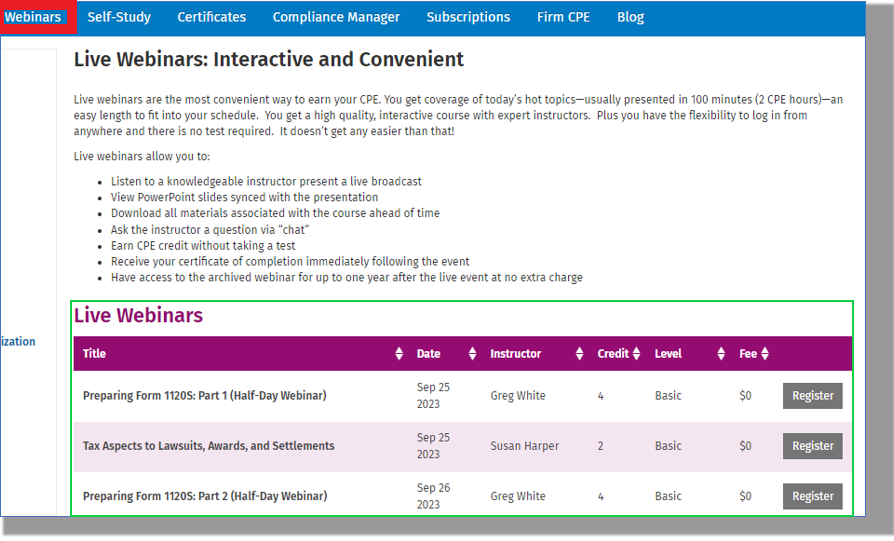
Click on the "Webinars" tab or use the Search to find a webinar.
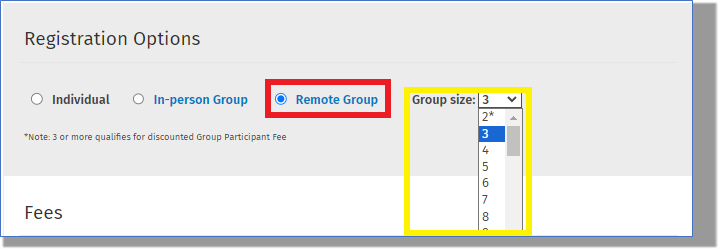
Click on the name of the webinar you'd like to register your staff in and select the "Remote Group" group option and select the number of attendees and click the red "Add to Cart" button towards the bottom of the page:
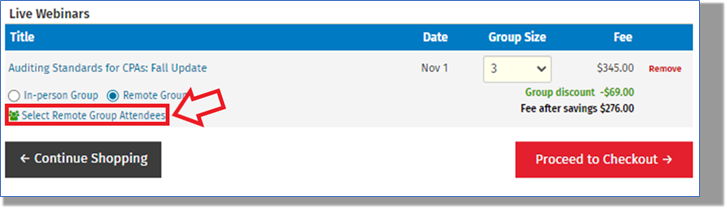
Click on the "Select Group Attendees" link:
In the "Select Group Attendees" box, click on the circles to the right of the staff members' names and click on "Submit":
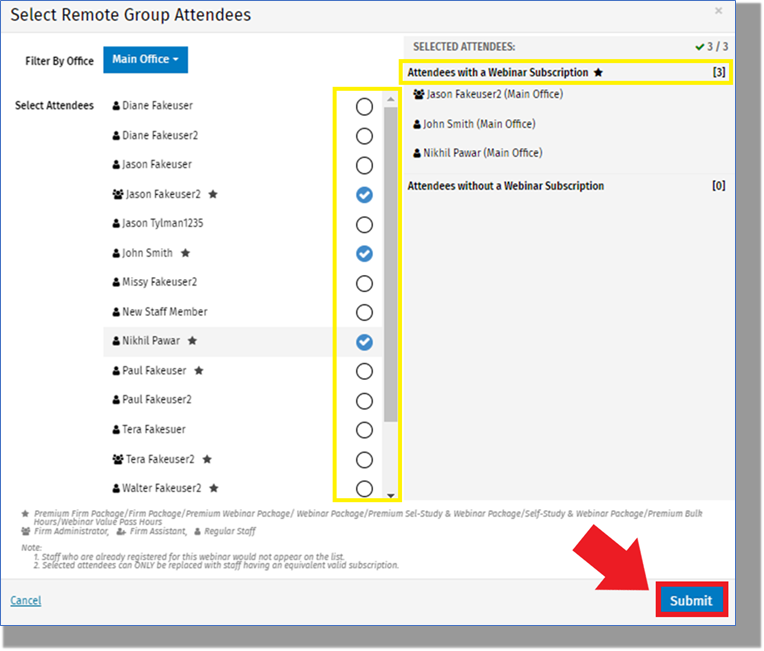
Those staff members with an active subscription will be indicated by a star. Any without a subscription will show up with a cost when checking out.
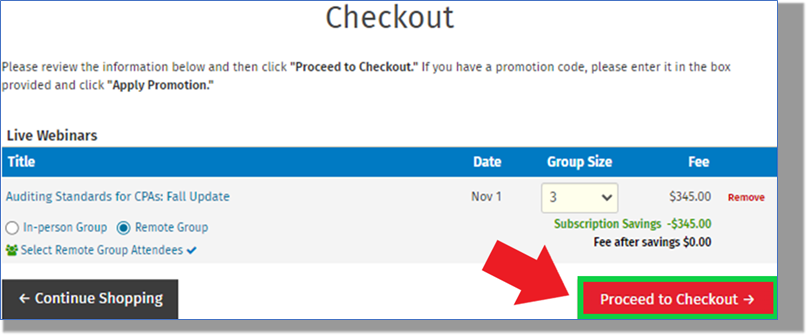
Click on the red "Proceed to Checkout" button to continue registering staff:
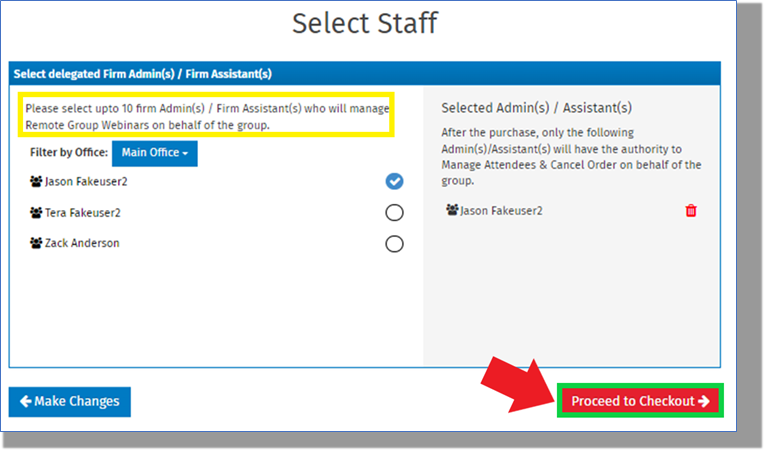
Select any Admins from your staff that may need access to make updates/changes to the group list PRIOR to the start of the webinar and click the "Proceed to Checkout" button. The individual setting up the registrations will be selected by default.
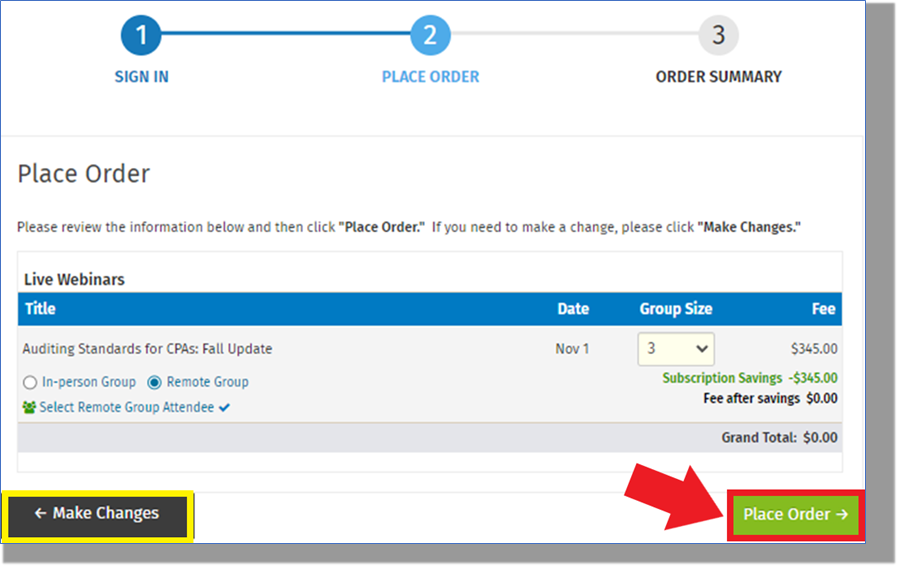
Review the selected choices, make any changes necessary and click on the "Place Order" button:
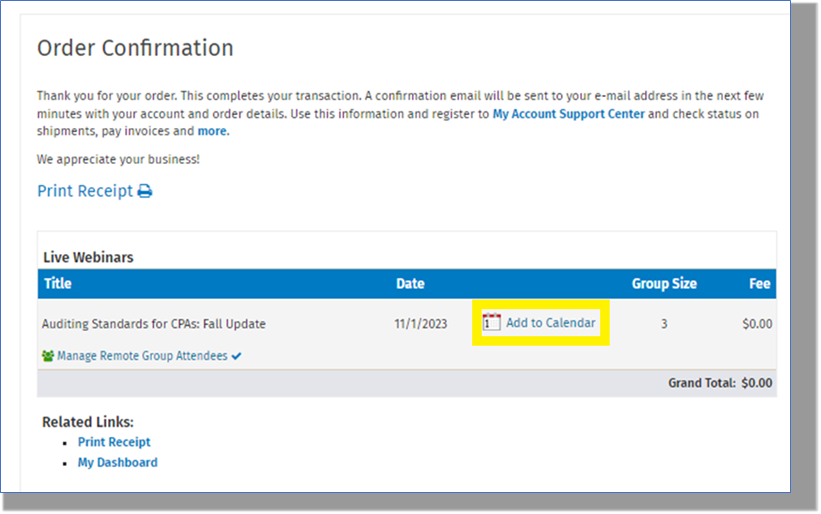
On the "Order Confirmation" page, the option to download a calendar invite will be available to send to your staff using your email provider. Each attendee should also receive a confirmation email that they have been registered for the webinar as well.
Click here for instructions on how to attend a webinar. Please note each attendee will be able to access the webinar 15 minutes prior to the start in the "My Dashboard > Webinars > Upcoming" area.
